Agal

The visual app guide

Agal, step by step.

Follow the screenshots to log your first harvest, connect with trading partners, manage shipments, and check a batch's journey. Start with the role you use in the app.

Screenshots show demonstration accounts and sample records, prices, payments, and verification results. Your account details and live data will be different. Select any screenshot to open a larger version.

Before you begin

  1. 1. Open the app

    Use the download section to check availability, then open Agal on your device.

  2. 2. Sign in to your role

    Connect to the internet, select Farmer, Supplier, or Buyer, and sign in with your account's email and password.

  3. 3. Find your way around

    Use Home, Batches, Messages, and Profile in the bottom navigation. Settings and account options are inside Profile.

01 / FarmerExample account: Junrey Gonzales

Log your harvest. Stay connected.

Start with a harvest on your phone, check buying offers, and reach your trading partners even when data is unavailable.

Harvests and outgoing messages work offline after sign-in

1

Get to know your home screen

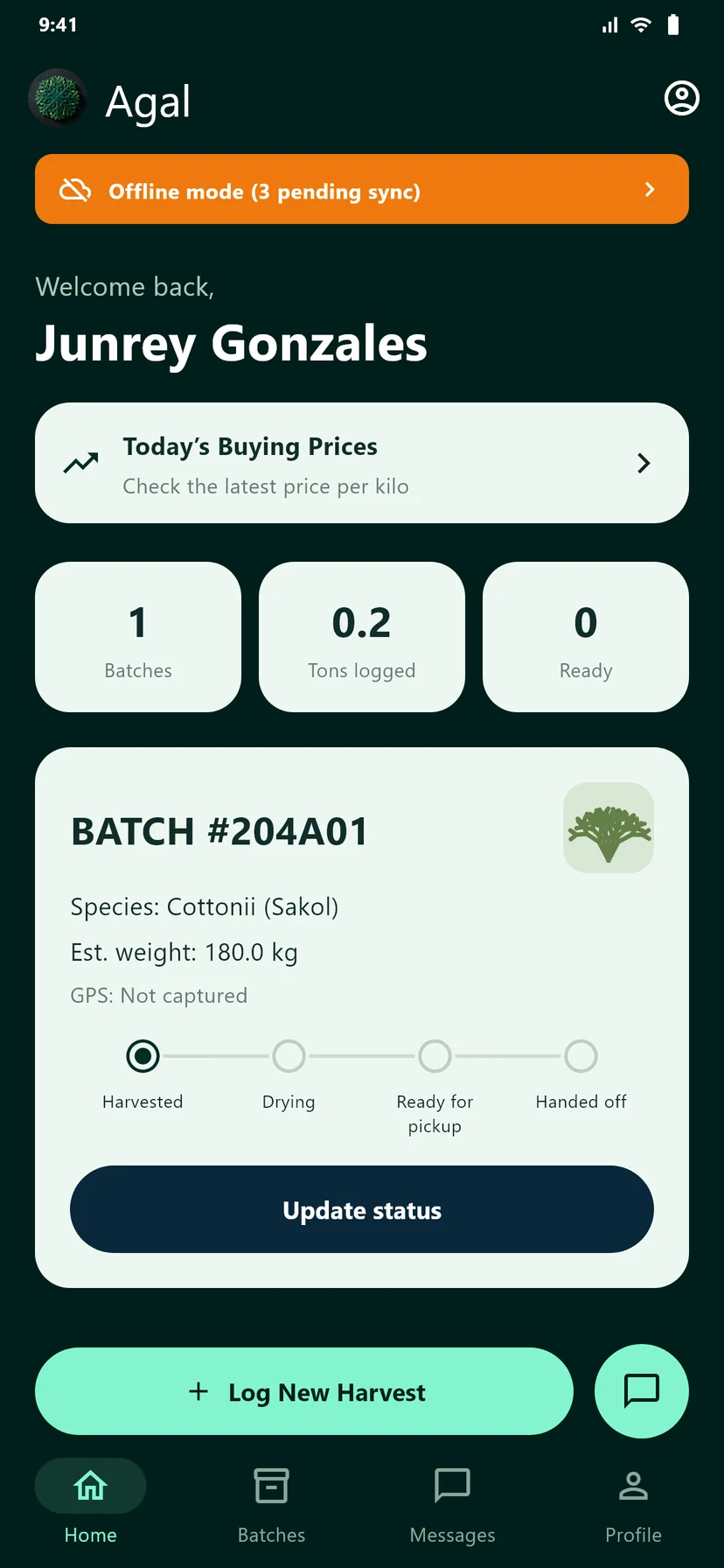
Junrey Gonzales’s farmer dashboard with an offline banner, pending sync count, buying prices shortcut, and a 180 kg Cottonii batch.
Home brings your saved batches, buying-price shortcut, and sync status together.Open full-size screenshot (opens in a new tab)
  1. 1Open Home after signing in as a farmer. The status banner tells you whether your records are synced, pending, or offline.
  2. 2Review your batch counts and saved harvest cards. Tap Update status on a batch, or find it in the Batches tab.
  3. 3When you begin drying, tap Start Drying. When finished, tap Finish Drying · Ready for Pickup so a supplier can find the batch.

Good to know. Tap the sync banner, or open Profile → Sync management, to see pending records and use Sync Now when connected.

2

Save a harvest without a connection

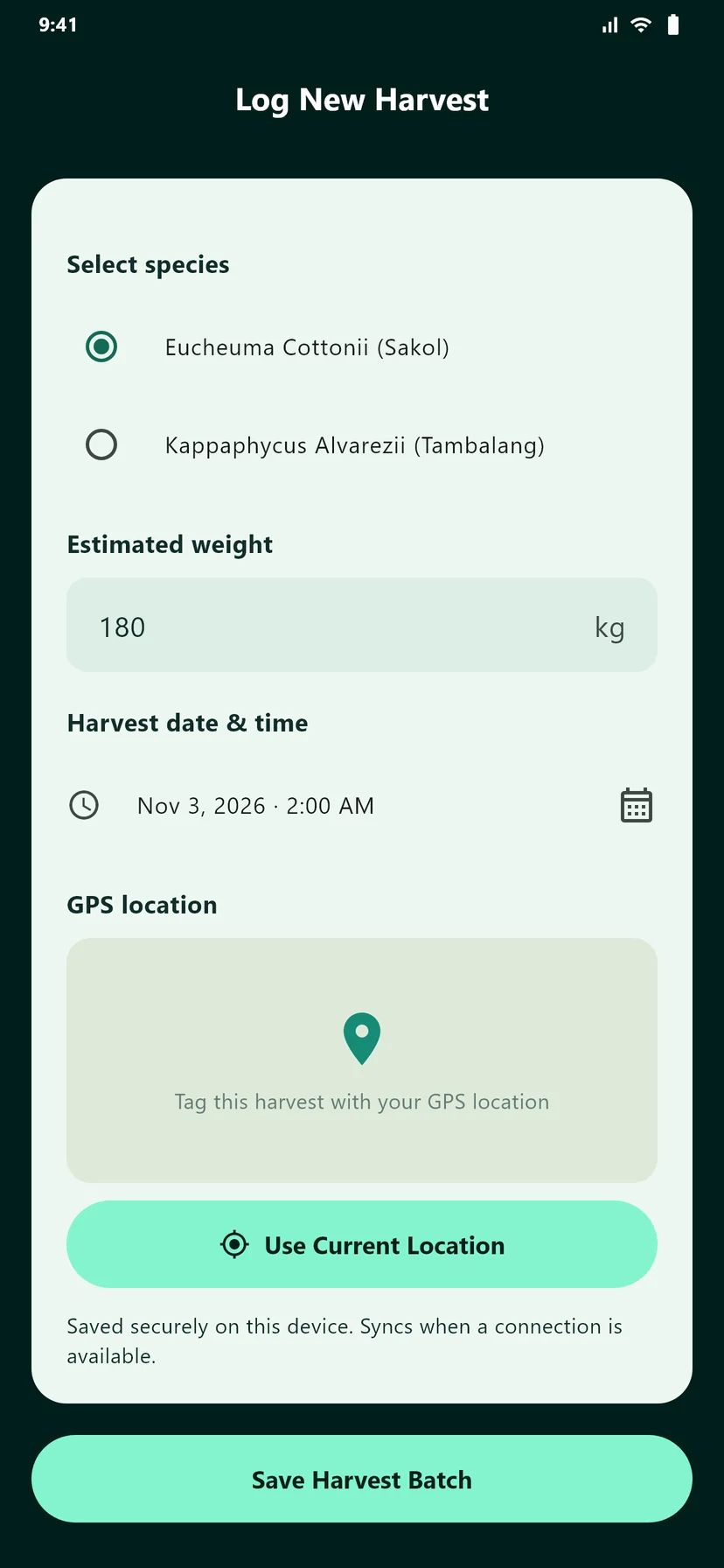
Log New Harvest form showing species choices, a weight of 180 kg, harvest date and time, GPS controls, and Save Harvest Batch.
Your harvest is saved on your device first, including when you are offline.Open full-size screenshot (opens in a new tab)
  1. 1From Home, tap Log New Harvest. Select Cottonii (Sakol) or Tambalang and enter the estimated weight in kilograms.
  2. 2Check the harvest date and time. Tap the date row to change them if you are logging an earlier harvest.
  3. 3Tap Use Current Location and allow location access to attach GPS coordinates. You can also save a harvest without a location.
  4. 4Tap Save Harvest Batch. Your record is stored locally and queued for sync when a connection is available.

Good to know. GPS can work without mobile data. The map preview may still need a connection. Keep Agal open when reconnecting so pending records can sync.

3

Check today’s buying prices

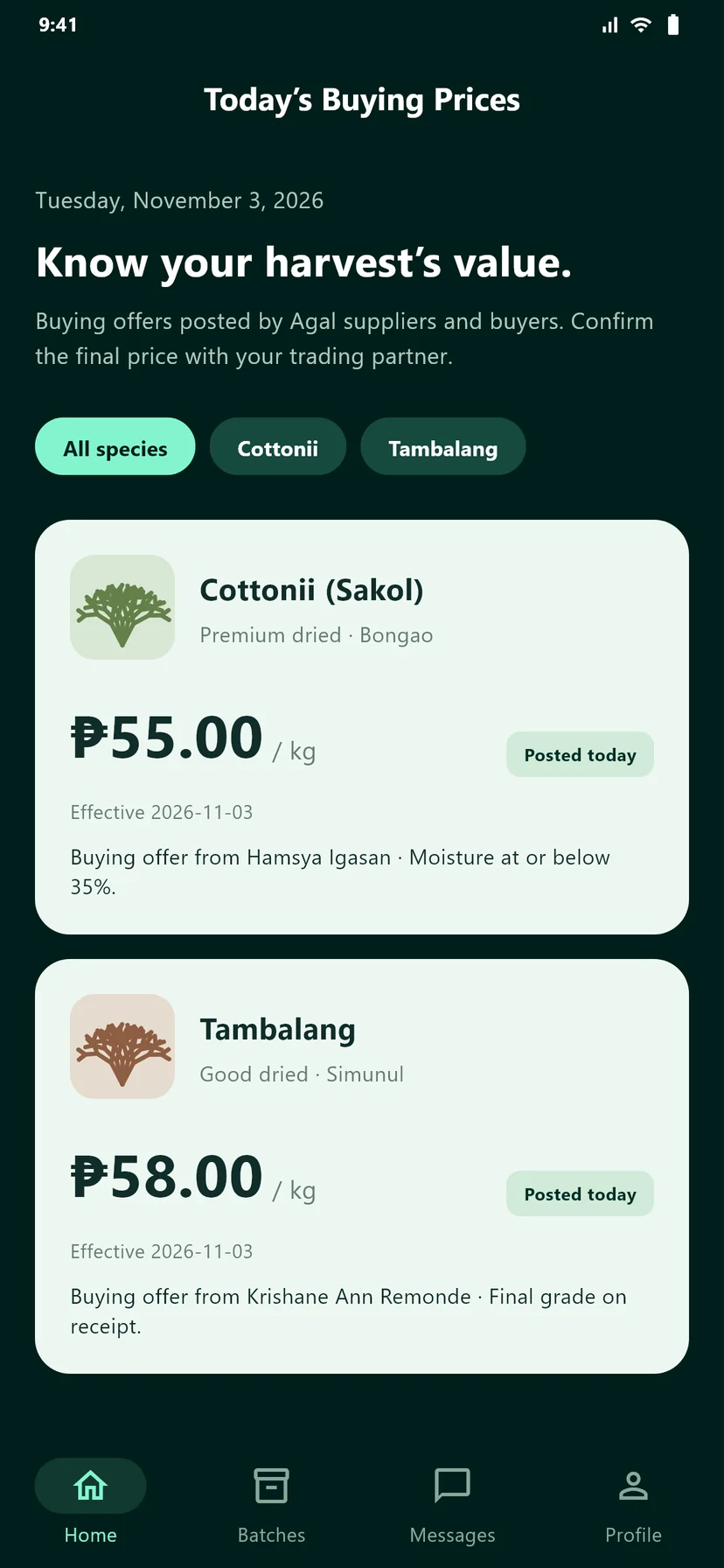
Today’s Buying Prices screen with Cottonii and Tambalang filters and sample offers of PHP 55 and PHP 58 per kilogram.
Compare posted offers by species, grade, location, and effective date.Open full-size screenshot (opens in a new tab)
  1. 1Connect to the internet, then tap Today’s Buying Prices on Home.
  2. 2Choose All species, Cottonii, or Tambalang to narrow the list.
  3. 3Read the price per kilogram, grade, location, effective date, and any buying conditions before contacting the trading partner.
  4. 4Pull down on the list to refresh the posted offers.

Good to know. The figures in these screenshots are examples. Live offers come from suppliers and buyers; confirm the final price and grade with your trading partner.

4

Send a message or use SMS

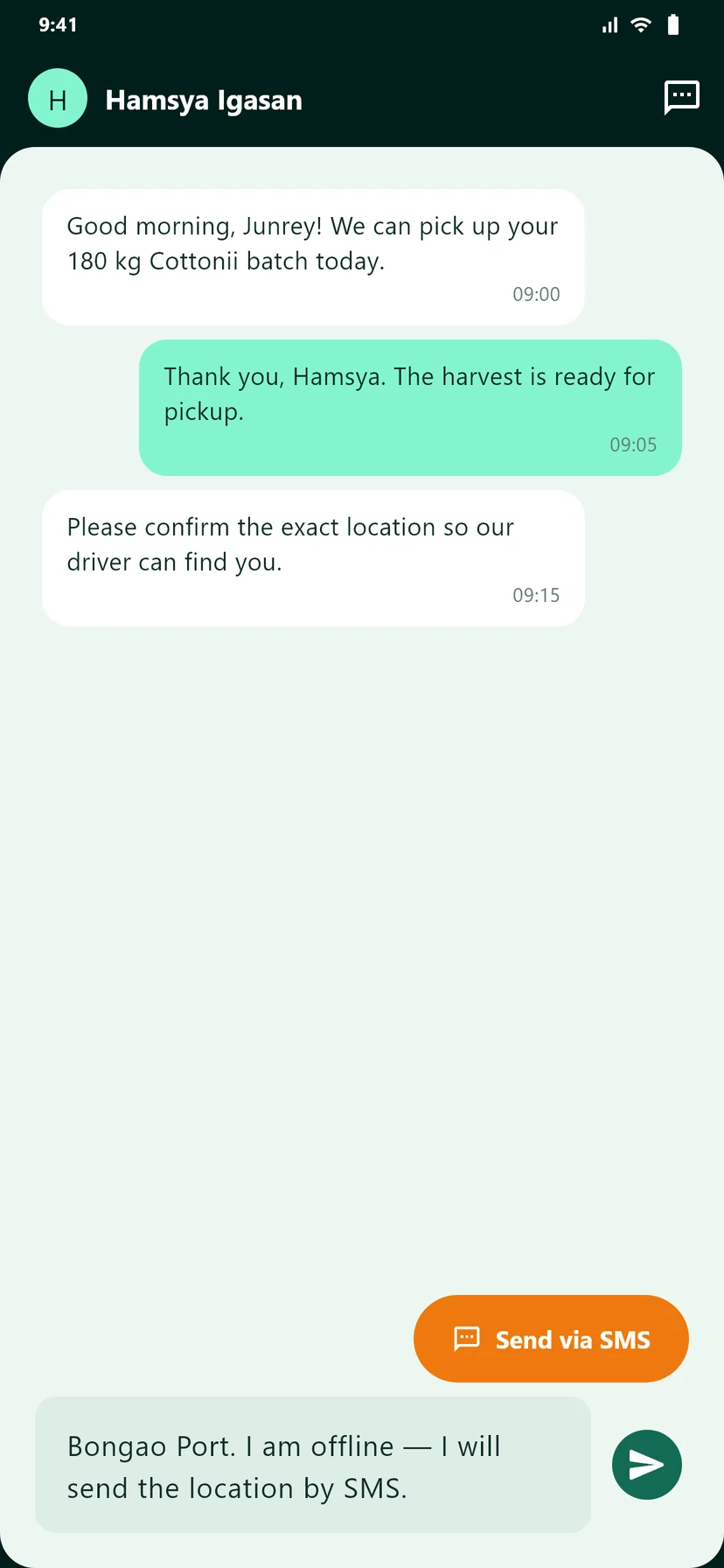
A conversation between Junrey Gonzales and Hamsya Igasan about harvest pickup, with a draft location message and an orange Send via SMS button.
Use in-app messages when connected, or open your phone’s SMS composer.Open full-size screenshot (opens in a new tab)
  1. 1Open Messages and choose a conversation. To start one, tap the compose icon and select a contact.
  2. 2Type your message and tap the send arrow. A farmer’s outgoing messages are saved and queued when offline.
  3. 3If the contact has a saved phone number, tap Send via SMS to open your phone’s messaging app with the number and draft filled in.
  4. 4Review the message and send it from your phone’s SMS app. Return to Agal to continue the in-app conversation.

Good to know. SMS uses your mobile network and plan. Sending an SMS does not automatically add that text to the Agal chat history.

Back to role selection ↑
02 / Supplier / TraderExample account: Hamsya Igasan

Manage your inventory and shipments.

Review recorded sales, receive ready harvests, and link inventory batches to a shared shipment manifest.

Internet required for inventory, receipt, and shipment recording

1

Review sales and receive batches

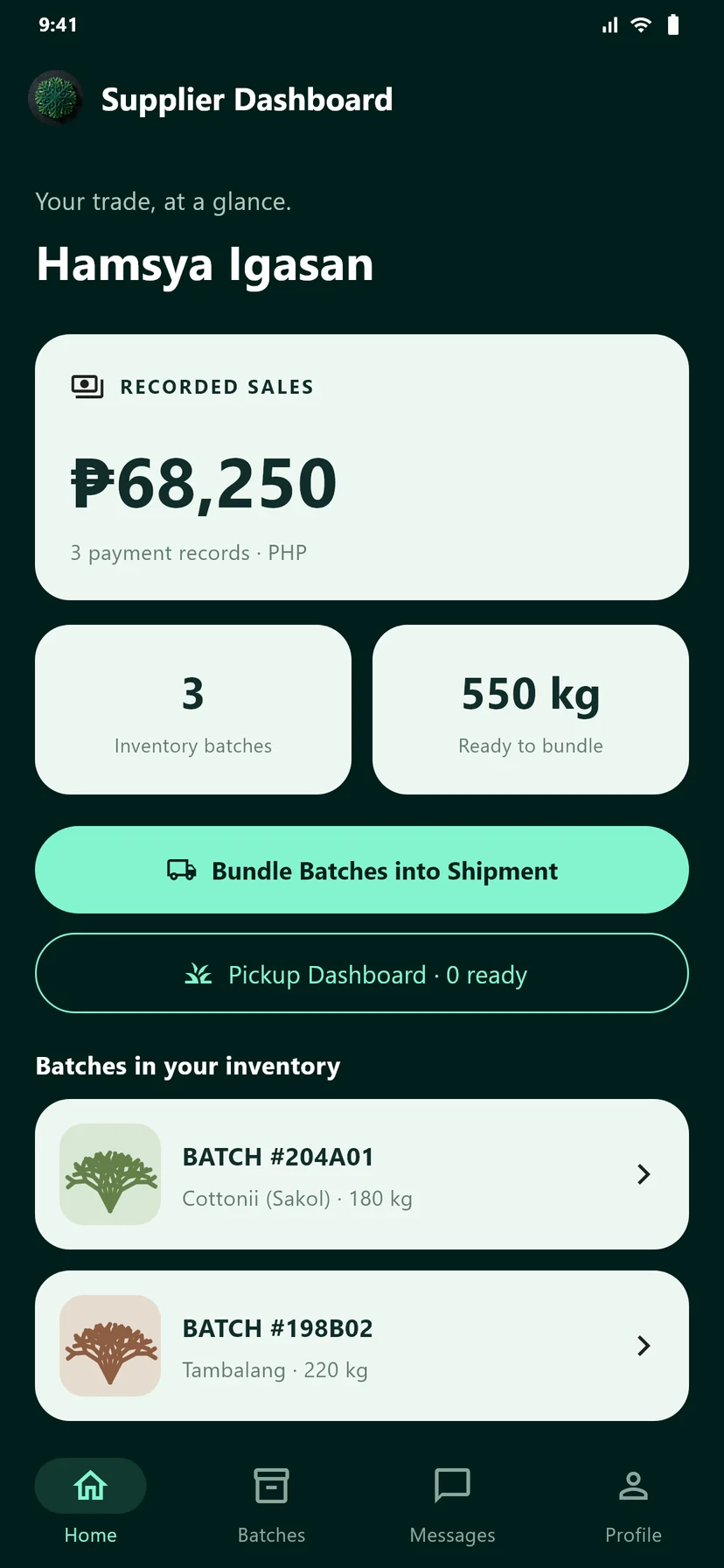
Hamsya Igasan’s supplier dashboard showing PHP 68,250 in sample recorded sales, three inventory batches, 550 kg, and a shipment button.
The dashboard summarizes payment records and batches currently in your inventory.Open full-size screenshot (opens in a new tab)
  1. 1Sign in as a supplier and open Home. Review Recorded sales, Inventory batches, and the weight ready to bundle.
  2. 2Tap Pickup Dashboard to find dried batches ready for pickup. Search by farmer, batch, or location.
  3. 3Choose Verify & receive on an available batch. Check its provenance, enter the verified scale weight, moisture level, quality rating, and any remarks.
  4. 4After receiving the harvest, tap Confirm Receipt & Record Transfer. The batch becomes part of your supplier inventory.

Good to know. Recorded sales summarize PHP payment events. They are not a wallet balance. Open an inventory batch to see its handling history.

2

Bundle inventory into a shipment

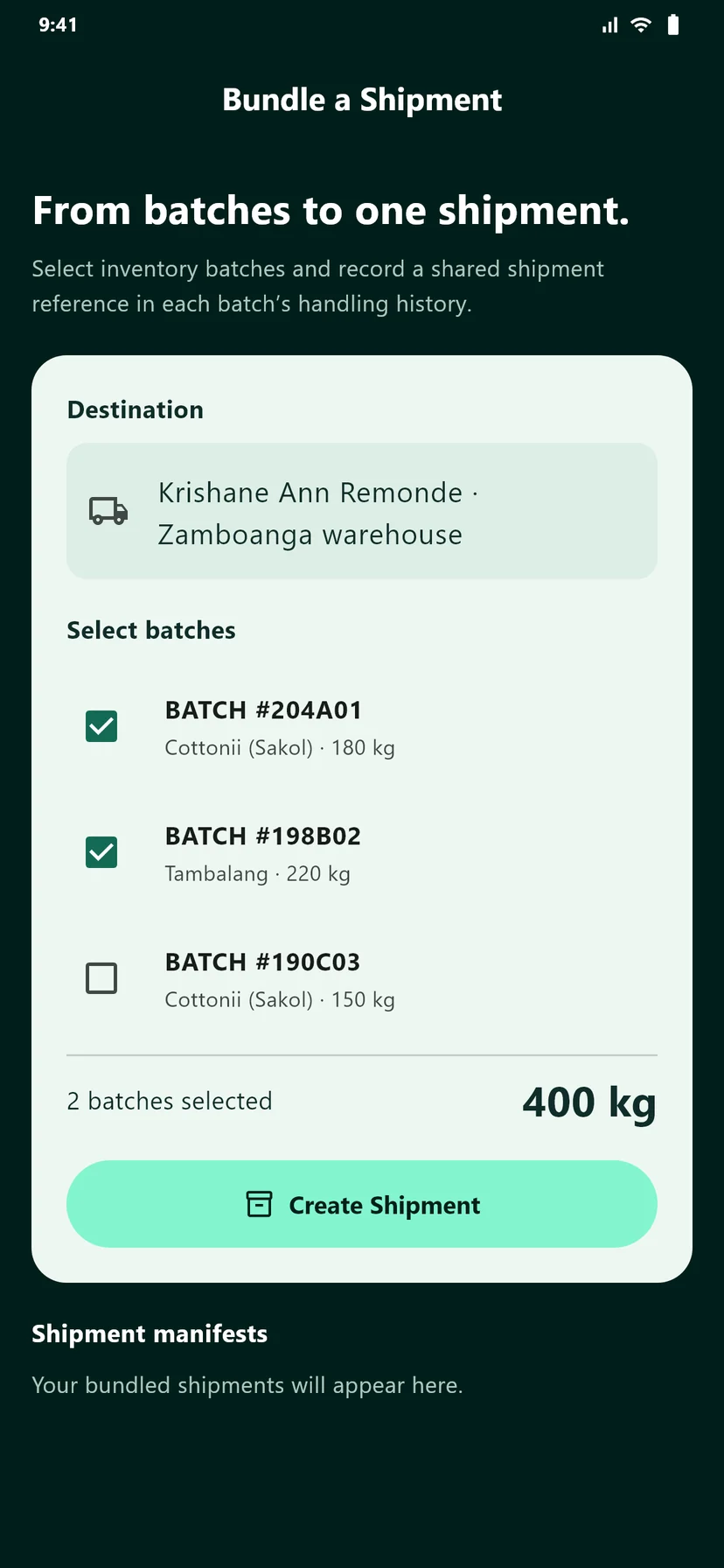
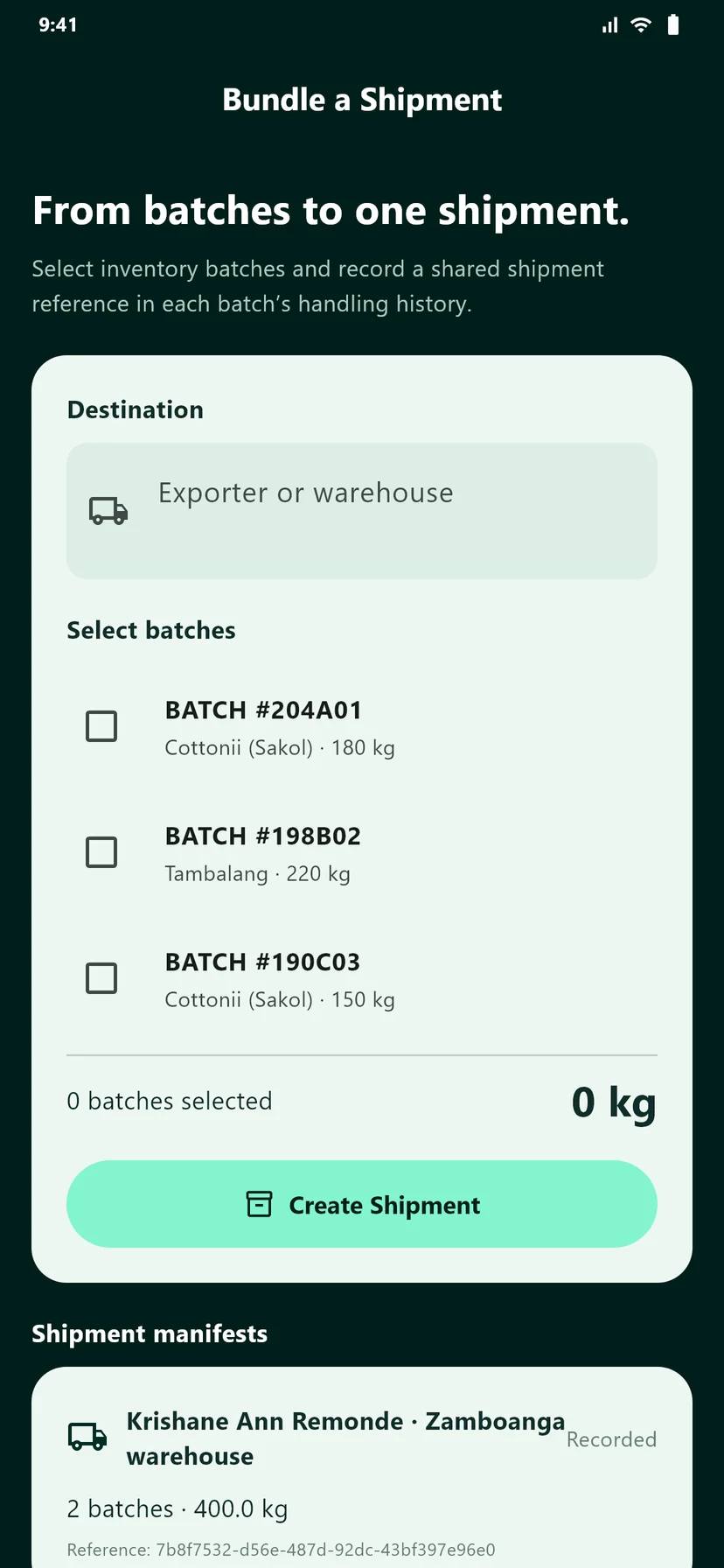
Bundle a Shipment form with an exporter destination and two selected batches totaling 400 kg.
Choose the batches you hold and give their shipment a destination.Open full-size screenshot (opens in a new tab)
  1. 1From Home, tap Bundle Batches into Shipment.
  2. 2Enter the exporter or warehouse in Destination.
  3. 3Tick the inventory batches to include. Check the selected batch count and combined weight at the bottom of the form.
  4. 4Tap Create Shipment to record a shared shipment reference in each selected batch’s history.

Good to know. Only batches currently held in your supplier inventory can be bundled. A manifest groups the batches; it does not itself confirm delivery or transfer custody to a buyer.

3

Check the recorded manifest

A recorded shipment manifest addressed to Krishane Ann Remonde’s Zamboanga warehouse, containing two batches and 400 kg.
The manifest lists its destination, membership, weight, and shipment reference.Open full-size screenshot (opens in a new tab)
  1. 1Scroll to Shipment manifests below the bundling form to review the shipment you created.
  2. 2Look for Recorded, then check the destination, number of batches, total weight, and reference.
  3. 3Open a member batch’s provenance to see the shipment note added to its handling history.
  4. 4If recording was interrupted and the manifest remains a Draft, reconnect and use the retry control to finish recording the batch links.

Good to know. Keep Agal open until recording completes. The saved manifest on this device helps you retry an interrupted request.

Back to role selection ↑
03 / Buyer / ExporterExample account: Krishane Ann Remonde

Know where your seaweed came from.

Find available batches, inspect their origin, and follow the handling history before recording a purchase.

Internet required for marketplace and blockchain verification

1

Find an available batch

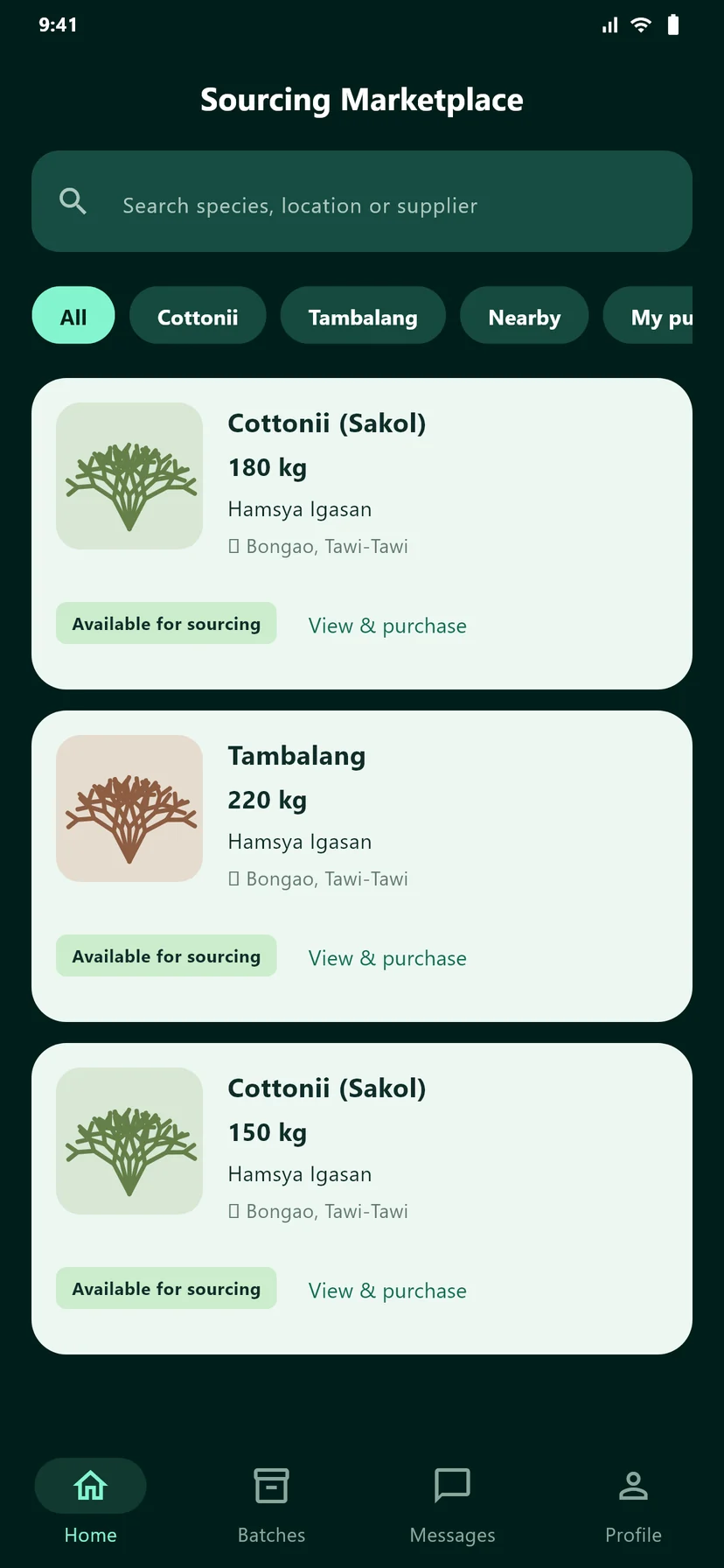
The Sourcing Marketplace with a search field, species and Nearby filters, and batches supplied by Hamsya Igasan.
Browse batches held by suppliers, or filter them by species and location.Open full-size screenshot (opens in a new tab)
  1. 1Sign in as a buyer to open the Sourcing Marketplace on Home.
  2. 2Search by species, location, or supplier. Use the Cottonii and Tambalang filters, or Nearby after allowing location access.
  3. 3Tap a batch card to inspect its provenance. If you already have a full batch ID, open Batches and paste it into Look up any batch.
  4. 4When ready to record a received purchase, choose View & purchase, complete the verification form, and confirm the purchase transfer.

Good to know. Use My purchases in the marketplace filters to find batches currently held by your buyer account.

2

Check the origin and verify a record

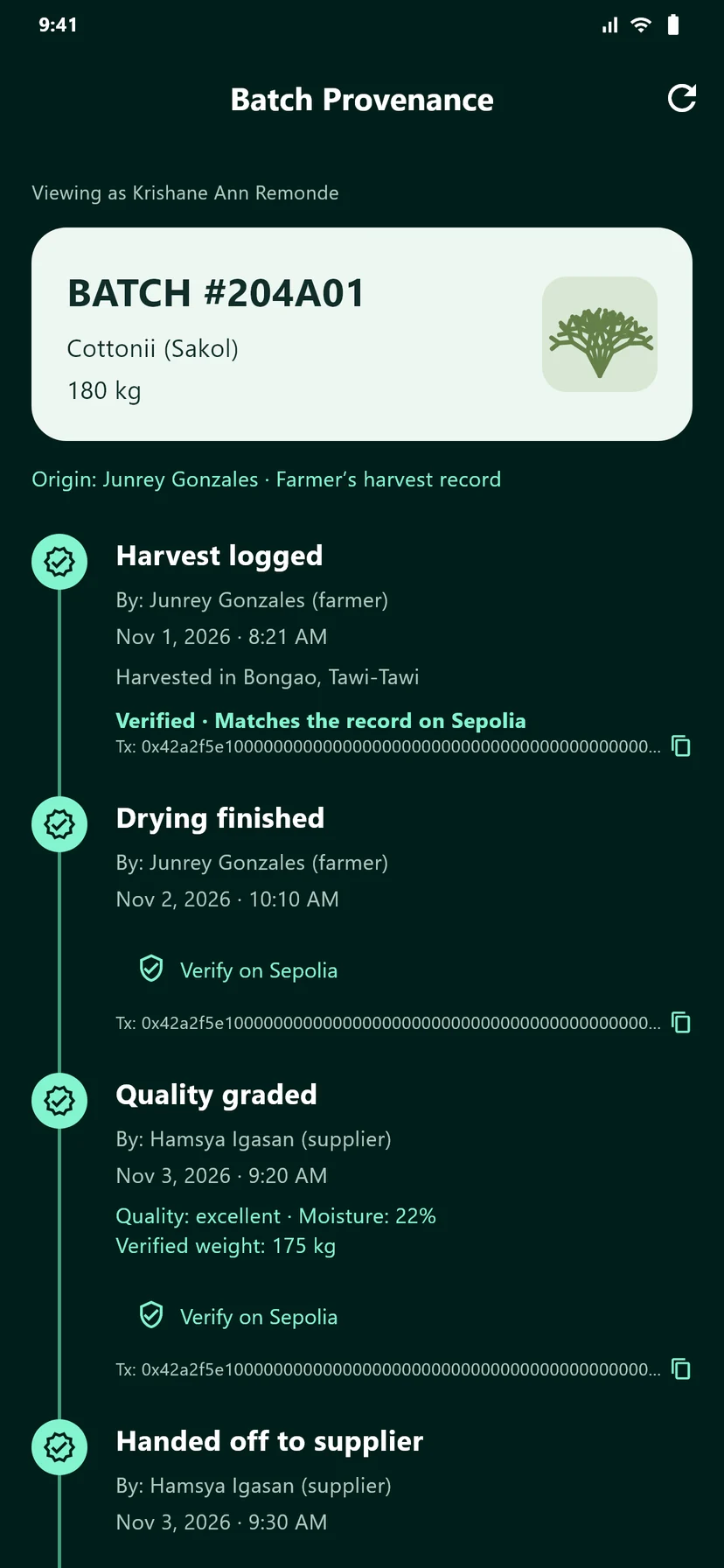
Batch Provenance viewed by Krishane Ann Remonde, showing Junrey Gonzales as the originating farmer and a verified harvest record.
Start with the farmer and harvest record, then check the recorded drying and grading steps.Open full-size screenshot (opens in a new tab)
  1. 1On Batch Provenance, check the batch ID, species, estimated weight, and originating farmer.
  2. 2Read the harvest entry for its date, actor, and available origin notes. Continue through drying and quality grading.
  3. 3For an anchored entry, tap Verify on Sepolia. The app compares that event’s data with the record on the public ledger.
  4. 4Read the result. A matching record means the event’s recorded data matches what was anchored on-chain.

Good to know. Pending entries become verifiable after anchoring completes. If Sepolia cannot be reached, try verification again when your connection is available.

3

Follow the full handling history

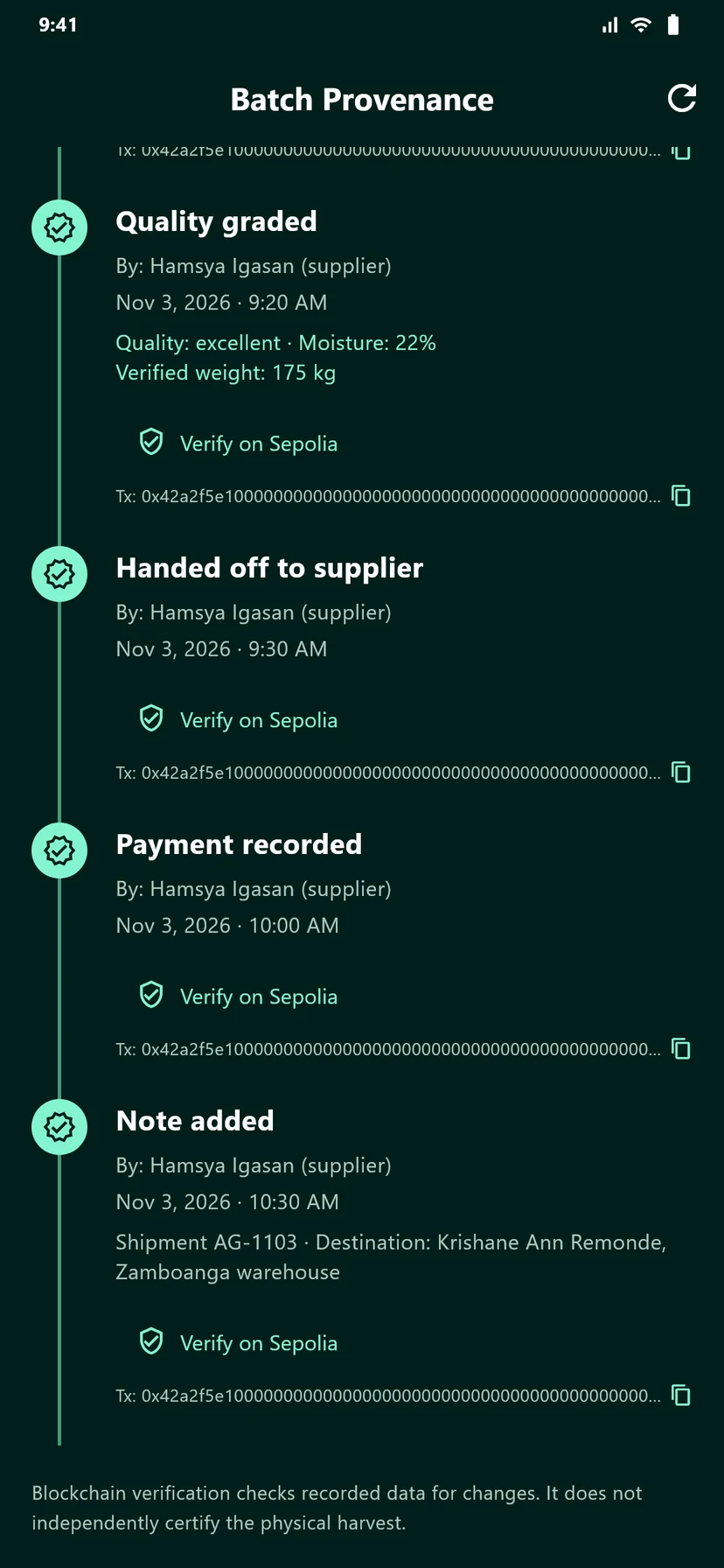
The batch handling timeline showing quality grading, supplier handover, payment, and a shipment note for the exporter’s warehouse.
The timeline keeps handling events and the account responsible for each step together.Open full-size screenshot (opens in a new tab)
  1. 1Scroll through the timeline to review quality measurements, handovers, payments, and shipment notes.
  2. 2Check who recorded each step and when it occurred. Shipment notes identify the shared shipment reference and destination.
  3. 3Tap the copy icon next to a transaction hash if you need to share that transaction reference.
  4. 4Use the refresh icon to load new handling events or updated anchoring status.

Good to know. Verification is per event. A matching hash confirms the recorded data has not changed; it does not independently inspect the physical harvest.

Back to role selection ↑

A little extra help

Questions while using the app?

What should I do before going offline?

Sign in while you have an internet connection. After that, farmers can save harvests, drying updates, and outgoing messages on the device. Account activation, current buying prices, supplier operations, and live verification need a connection.

What does the pending sync count mean?

These are locally saved harvest events and messages that the server has not acknowledged yet. Tap the banner or open Profile → Sync management, reconnect, and tap Sync Now. Keep the app open while it syncs.

Can I register without an internet connection?

Register Offline saves a secure registration draft on your device. Return to Sign up when connected to complete registration and activate the account before using the app.

Where do I edit my profile or change settings?

Open the Profile tab. Personal information lets you edit your name, phone number, and municipality. The settings gear opens appearance, biometric login, privacy, and other app options. A saved phone number lets trading partners use the SMS fallback.

What if sync or verification fails?

For harvests and farmer messages, keep the local records, reconnect, and retry from Sync management. For verification, refresh the batch history and retry Verify on Sepolia. A pending or failed anchor is not the same as a verified record.
Ready to log your first harvest?

Keep this guide handy as you explore Agal. The user manual has a quick role-by-role reference, too.